
Four test batches produced four saved MP4 or MP3 files and two expected errors from missing tracks. Compare what went in, what came out and which files were ready to save.
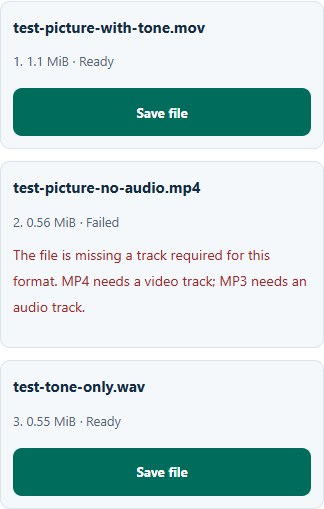
Our 12-second MOV got slightly larger when converted to MP4. In a mixed MP3 batch, a video without an audio track failed while the two files with sound were ready to save.
What happened when we uploaded, converted and saved real files?
On , the site operator ran these four batches with self-generated test pictures and tones. The 12-second landscape MOV contained video and audio, the 6-second portrait MP4 had no audio, and the 6-second WAV contained sound only. The tests used uploaded files. Platform link extraction is paused.
| Input and selection | Observed result | What can you learn from it? |
|---|---|---|
| 12-second MOV with sound → MP4 | Ready. H.264 video + AAC audio, 12.010 seconds, 1,212,696 bytes. | The input was 1,177,809 bytes, so the output grew slightly. Converting to MP4 does not necessarily compress a file or improve its picture. |
| MOV with sound, silent MP4 and WAV → one MP3 batch | MOV: ready MP3, 12.010667 seconds, 289,773 bytes. WAV: ready MP3, 6.000 seconds, 145,197 bytes. Silent video: failed because it had no audio track. | One missing-track failure left two results available to save separately. Keep the silent video’s picture instead of repeatedly trying to extract sound it does not contain. |
| 6-second audio-only WAV → MP4 | Failed because there was no video track. No output file. | This option cannot turn audio alone into a picture. Clear the batch and select an audio format. |
| The same WAV → MP3 in a new batch | Ready. MP3, 6.000 seconds, 145,197 bytes. | Correcting the target format made the result available to save. The original did not need renaming or recreating. |
Every ready result was saved with the page’s button and decoded from beginning to end. Each batch was then cleared, and its old save links stopped working. Optional analytics was declined throughout; conversion still worked. We used desktop and mobile-sized Chrome windows. These small synthetic inputs do not establish results for every device, format or maximum-size file.
View the actual mixed-batch result at a mobile screen size
Read the four-batch input, output and verification record as JSON, including fixture descriptions, bytes, durations, codecs and SHA256 hashes. Full decoding checks media readability; it is not a malware scan or rights certification.
To try the same workflow, select your media files below. Conversion uploads the selected files to this site’s server. Extract archives on your device and leave out account backups, ZIP and JSON files, messages and login information. Read how files are handled and cleared.
Choose files and an output format
Initializing. Choose files before starting.
This tab temporarily remembers a random batch ID so you can check it after reloading; original filenames are not stored. Closing the page stops unfinished uploads, but submitted conversions can continue. Use the cancel or clear control to stop processing or remove results.
Should I convert my file to MP4 or MP3?
Choose MP4 to keep a picture, or MP3 when you only need sound. The selection applies to the whole batch, so group files by the result you want. This converter does not join several files into one video or create a soundtrack for a silent recording.
| File already on your device | Suitable choice | Check before uploading |
|---|---|---|
| Video with picture and sound | MP4 for video; MP3 for sound only | Do not choose MP3 if you need the picture. Play the original to check that the sound you want is present. |
| Silent video | MP4 | MP3 fails when there is no audio track. First distinguish a muted player from a file that contains no audio. |
| Audio only, such as WAV or M4A | MP3 | This tool’s MP4 output requires a video track; it does not add a cover image to audio. |
| Account backup ZIP, JSON or web page | Find the actual media on your device first | Changing the extension to .mp4 does not create a video. Extract the archive and check the file you intend to use. |
The picker accepts MP4, M4V, MOV, WebM, MKV, MP3, M4A, AAC, WAV, OGG, Opus and FLAC extensions. The server also checks the actual contents. A listed extension does not make a damaged, encrypted or missing-track file convertible.
Try one short file before a larger batch. The individual size, combined size and duration limits all apply: four inputs of 90 MiB each are individually below 100 MiB, but their 360 MiB total exceeds 300 MiB and needs splitting into batches. Re-encoding can also make an output larger. If the original already suits your purpose, keeping it avoids another round of lossy encoding.
For your first conversion, follow the file selection, upload, save and cleanup tutorial.
How do I prepare media from an official export?
Use the platform’s official saving feature or export your own account first, then download the files to your device. If you receive an archive, extract it locally and select only the video or audio you want to convert. Do not submit the entire backup. This tool does not connect to your account or follow media links in exported JSON.
Your own YouTube uploads
In YouTube Studio, find your own video under Content and use its menu to download it. Google Takeout also provides an export route for your uploads. Read YouTube’s official steps and restrictions. Premium’s in-app offline viewing is different from a normal media file you can upload here. Keep and use your original recording when it is still available.
For a larger export, use the Google Takeout YouTube videos to MP4 walkthrough before selecting files. It explains which archive contents to keep local and how to avoid converting an MP4 that already works.
TikTok’s saving feature and your original files
Use your own recording or the app’s Share → Save video option when it is available. TikTok’s official help ties that option to the creator’s download settings; respect the setting when it is absent. Do not submit the JSON or TXT from an account-data request as a video. Saving a file does not automatically permit adapting or republishing its music.
Start with the TikTok download and saved-file guide if you still need to save a video, or want to decide whether your existing file needs MP4 or MP3 conversion.
Your own Instagram content
Open Accounts Center from Instagram’s settings and check the options for downloading your information. Select your own account and complete the export; Meta’s official explanation describes these controls. Extract the backup on your device and choose only media you have permission to process. Keep messages, contacts, account information and the full export archive out of this tool.
Use the Instagram export and file conversion guide to find the media you need and distinguish one saved clip from a post with several separate items.
How do I check the result?
Wait for that item to be ready, then save and check the local copy’s picture, sound and duration. For a failure, distinguish a missing track, a file limit and a connection problem before retrying.
- Uploaded, but still waiting
- Uploading only delivers an input file. Queueing and conversion still need to finish. Save a result when that item’s Save file button becomes available. Keep the page open during upload; upload progress is not conversion progress.
- One file failed while others are ready
- Save the ready results first. A failed item does not require you to redo successful files. After saving, clear the batch and select only the originals you need to retry, using a suitable format. Each batch has one target format.
- No usable video or audio track
- Renaming an extension cannot add a missing track. MP3 needs audio; use a file with a video track to make an MP4 with a picture. If you chose MP4 for audio-only input, select MP3 for the next batch. Keep silent video as MP4.
- Too large, too long or unreadable
- Choose an original that plays correctly and meets the limits. ZIP archives, export JSON and DRM-protected content are not conversion inputs. Shortening a filename or changing its extension does not fix size, duration or damaged content.
- The connection dropped and progress stopped updating
- Reconnect and choose Check progress again before uploading anything twice. The server may still be processing while your page has lost the status connection. Reloading the same tab can check the remembered batch, but save links still belong to the original browser session.
- Ready, but not on your device
- Click Save file for each result and confirm the browser transfer finished. Results are available for 1 hour. Choosing Cancel remaining conversions keeps completed results available; choosing Clear server files removes them, so check your saved copies first.
Conversion changes encoding; it cannot restore missing detail or guarantee compatibility with every player. Compare the duration, beginning and end with your original, and check the sound you need is present. See our MP4 and MP3 conversion measurements or inspect a saved result with the browser-only file checker. That checker reads locally; this conversion page uploads to the server.
These conversions are not counted as YouTube, TikTok or Instagram download success/failure events. Optional page analytics still follows your privacy choice; conversion works when analytics is declined. Check rights in the work, music and intended use separately. A successful conversion does not certify those rights.